Understanding your account activity report
 Updated
Your monthly statement is your primary resource for deposit reconciliation. For more frequent needs, a daily Payout report is now available in your Back Office.
We're actively developing a more user-friendly daily report, as we know a robust solution is essential. We expect to release those updates in early to mid-September. In the meantime, this guide will help you interpret your current data.
To download a CSV of your daily deposits, simply click the Download button for the desired date on the Reports tab in your Back Office.
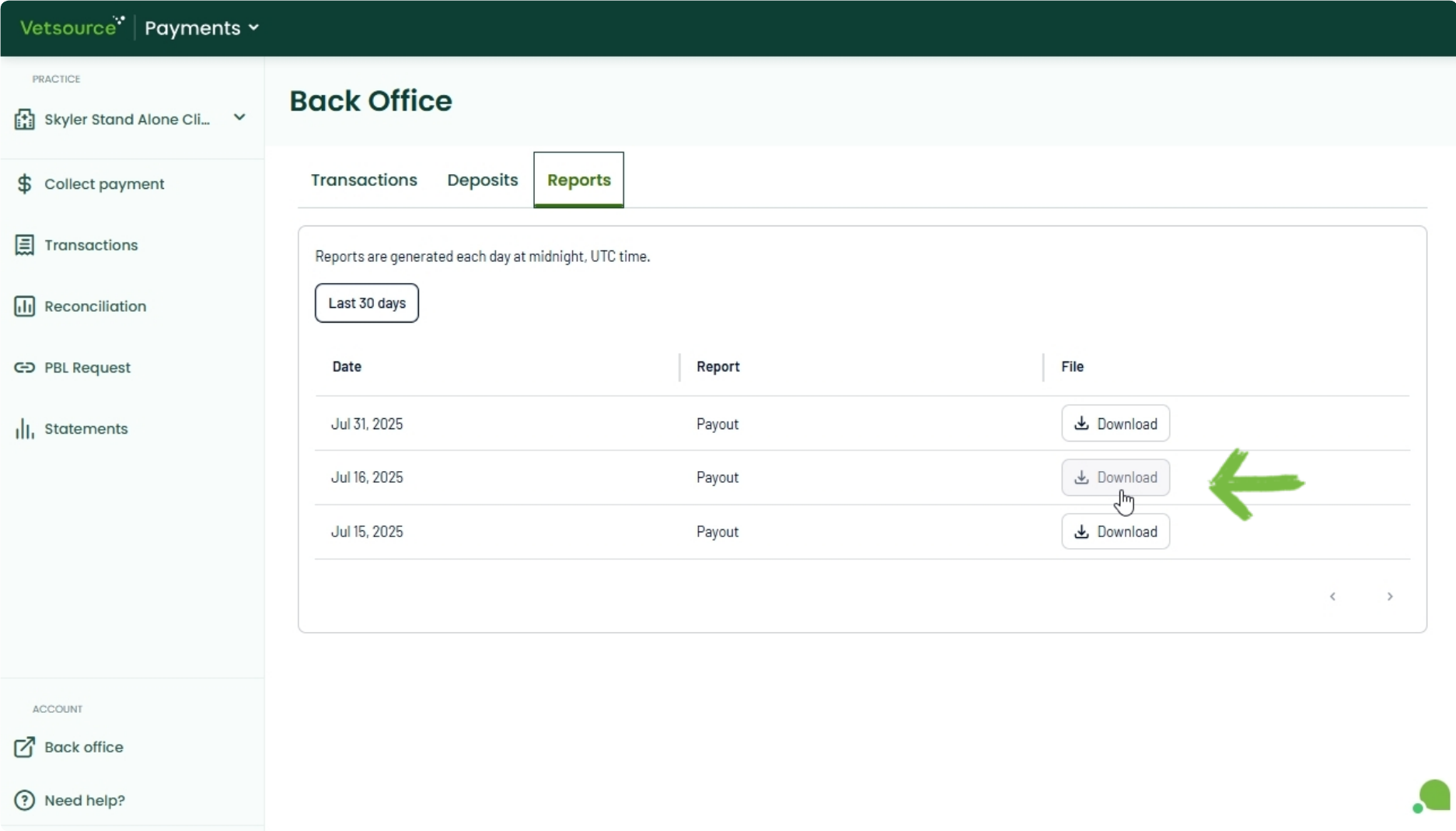
Understanding your Payout report
The Payout report details the funds transferred to your account. Below is an explanation of the key columns and terms.

Booked: Transaction successfully initiated and recorded in the system. Funds may not be fully processed or settled yet.
Captured: Payment successfully processed and will be included in a future Net Deposit on the Payout Date.
Refunded: Funds from a previously captured transaction have been returned to the customer.
Chargeback: A transaction reversed by the customer's bank or credit card company due to a dispute.
For bankTransfer types, this is the final total deposited into your bank account after all deductions.
Also shows individual transaction amounts, further detailed by the Description column.
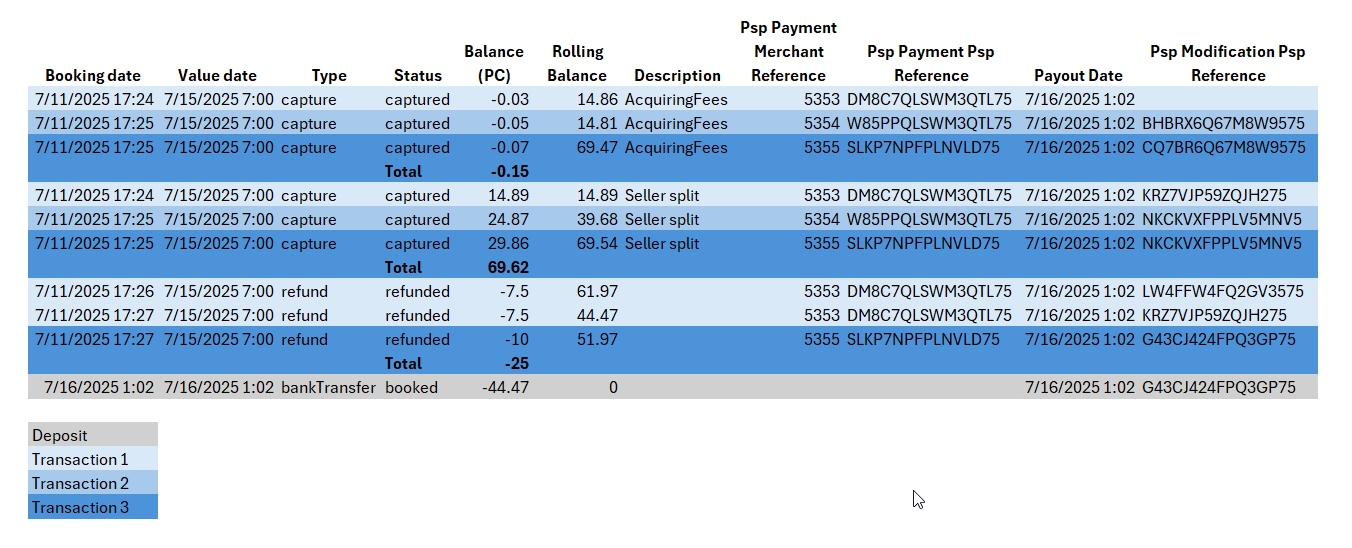
SellerSplit: Your portion of the original payment after Vetsource fees are deducted, but before other external fees (e.g., card brand fees).
AcquiredFees: Fees charged by credit card brands (e.g., Visa, Mastercard, American Express) for processing the transaction. These are deducted before the final net deposit.
Calculating totals and reconciling original payment amounts
To get started, you'll need to know how to sort your data and hide some columns. For a quick tutorial on how to do this, see the instructions on How to hide columns and sort data in Excel.
How to reconcile original payment amounts by transaction
- Export your payment collections
- Navigate to the Transactions tab and filter by the date that is two days prior to your payout report date. This will correspond to the transaction date + 2 business days (T+2) funding schedule. See Understanding your deposits for a clear visualization.
- Click the Export button to download a csv file of your filtered transactions.
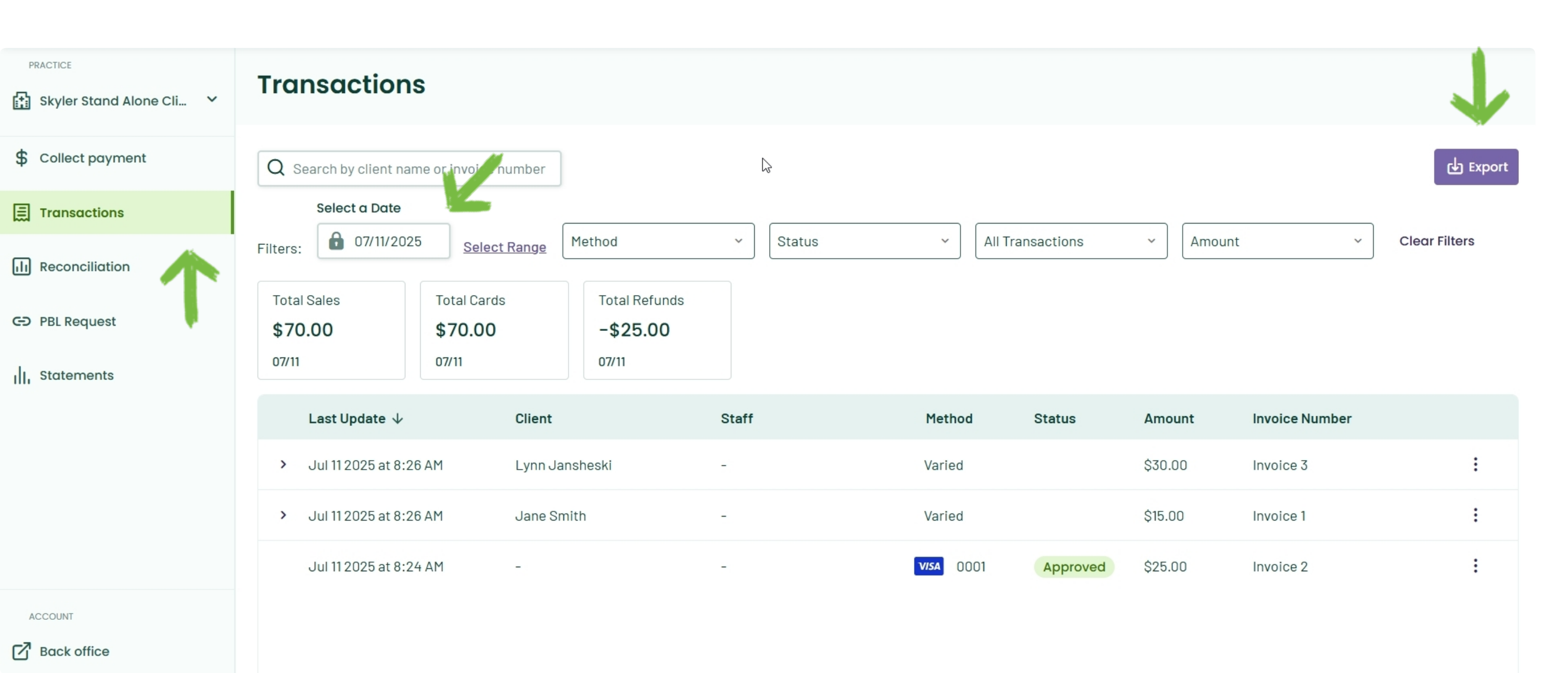
- Organize your data
- To streamline your view, hide any columns in your Payout report that are not necessary for the reconciliation process.
- Sort your Payout report first by Booking date, and then add a secondary sort level for Psp Payment Merchant Reference.
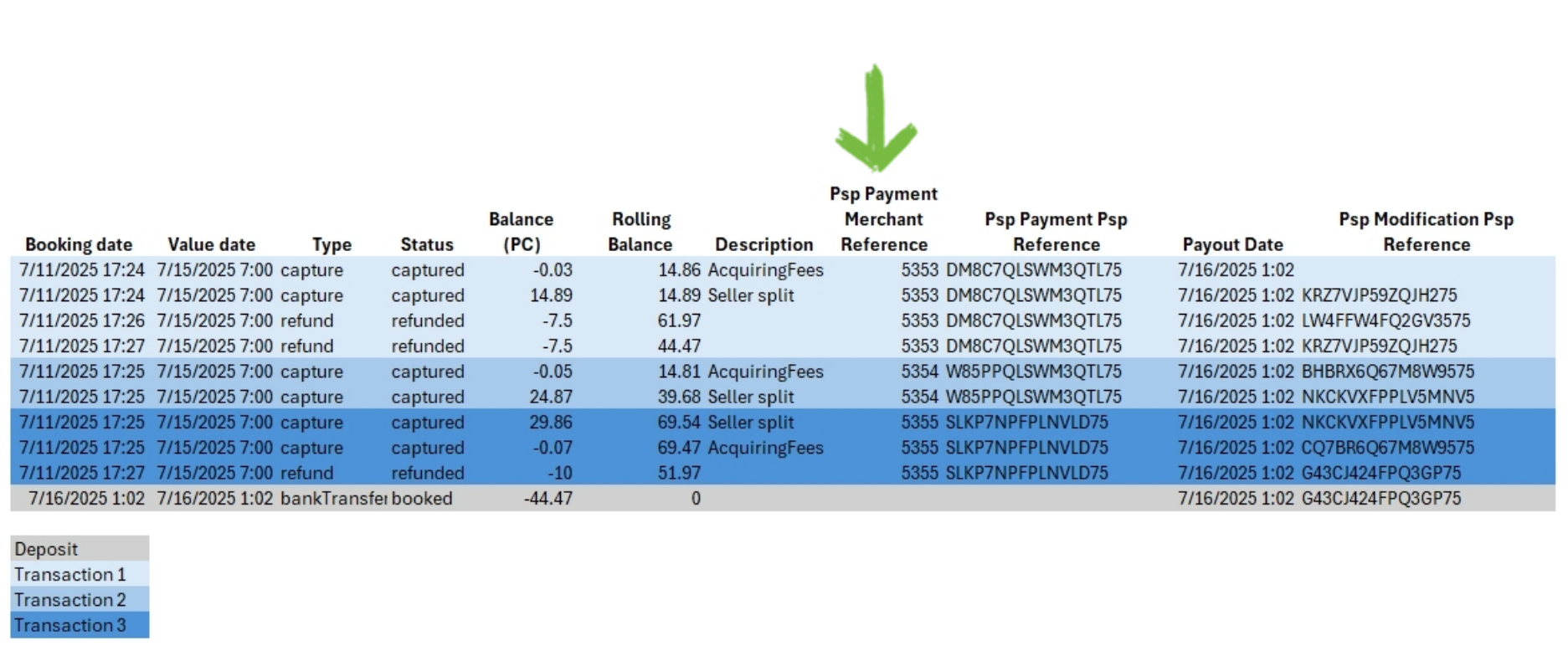
- Sort your Transactions export by merchant reference.
- Now, you can cross-reference the Merchant Reference columns in both reports to find your original payment amounts.
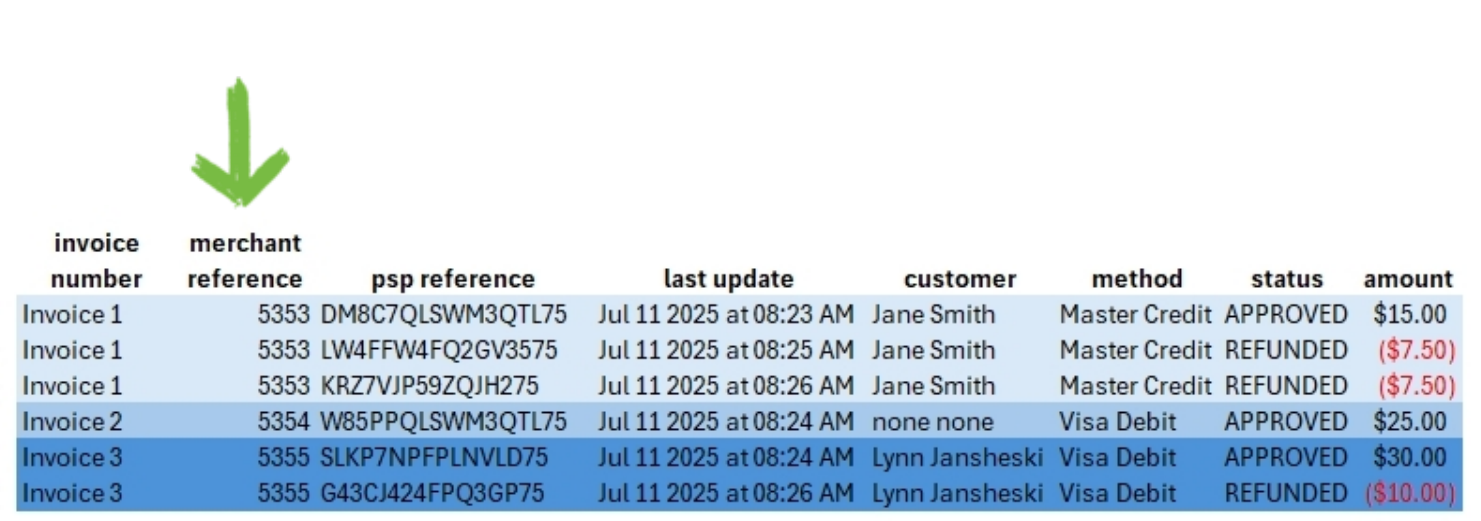
How to calculate your total fees from your payment collections
- Re-sort your payout report by Description and sum the AcquiringFees, Seller split, and refunds in the Balance column.
- Re-sort your transaction export by status and sum your payments and refunds.
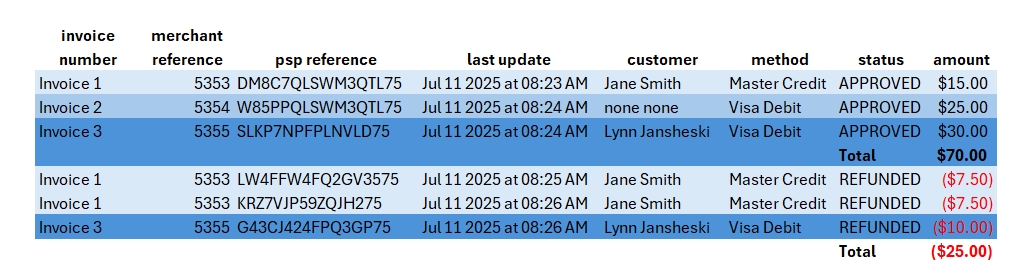
- To calculate your total Vetsource fees, subtract the Seller split from your gross payment collections.
- Add the total Vetsource fees to the total AcquiringFees (card brand fees). This gives you the total fees that were deducted.
- Confirm your net deposit: Gross payments - total fees - refunds
If you need additional assistance, please contact our support team.
