How to hide columns and sort data in Excel
 Updated
Hiding and Unhiding Columns
To hide a single column, click the column letter at the top (e.g., 'A', 'B', 'C'). To select multiple columns, click on the first column letter and drag your mouse across to the last column you want to select. Then, right-click on any of the selected column letters and choose Hide from the menu.
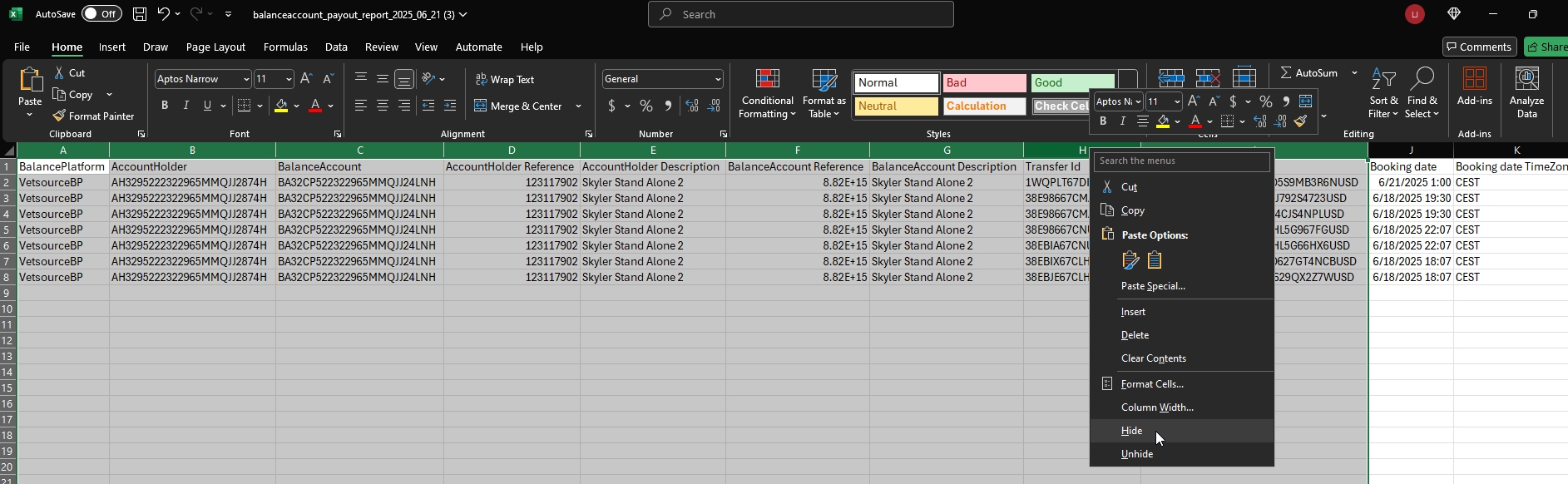
To unhide columns, select the columns to the left and right of the hidden columns. For example, if column C is hidden, click and drag to select columns B and D. Next, right-click on the selected columns and choose Unhide. The hidden columns will reappear.
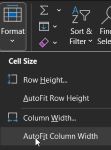
To instantly expand your columns to fit all your content, navigate to the Home tab, click Format, and then select AutoFit Column Width.
Selecting All Cells
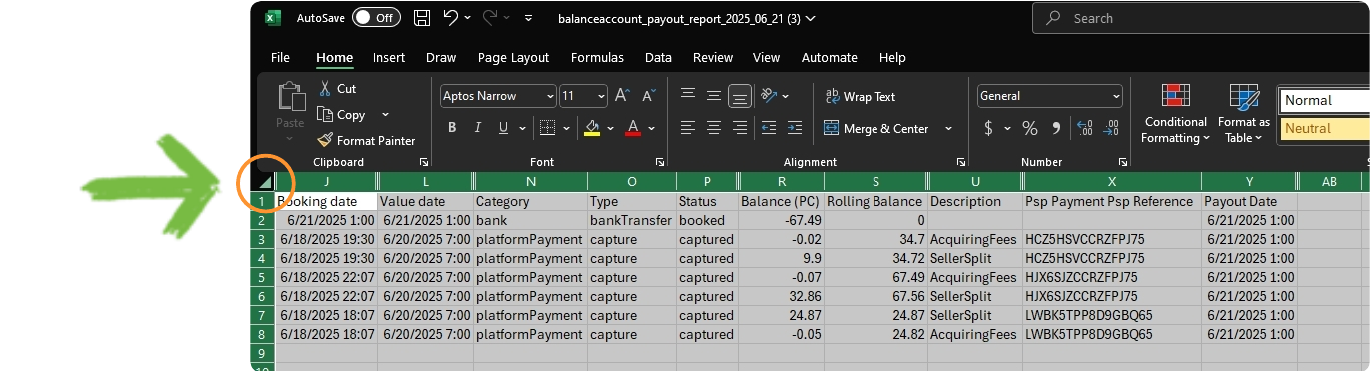
To select all cells in your worksheet, go to the Home tab and click the small triangle icon located in the top-left corner where the row numbers and column letters meet. This selects every cell on the sheet, which is useful for applying formatting or sorting to the entire dataset.
Sorting Data
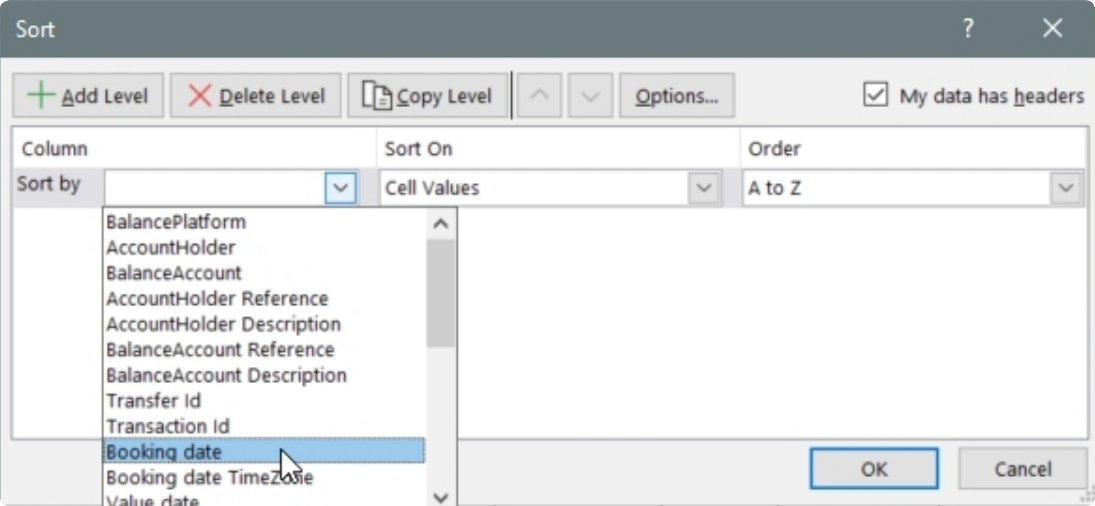
To sort data in your spreadsheet, first ensure all relevant data is selected. Navigate to the Home tab and find the Sort & Filter button, then select Custom Sort.
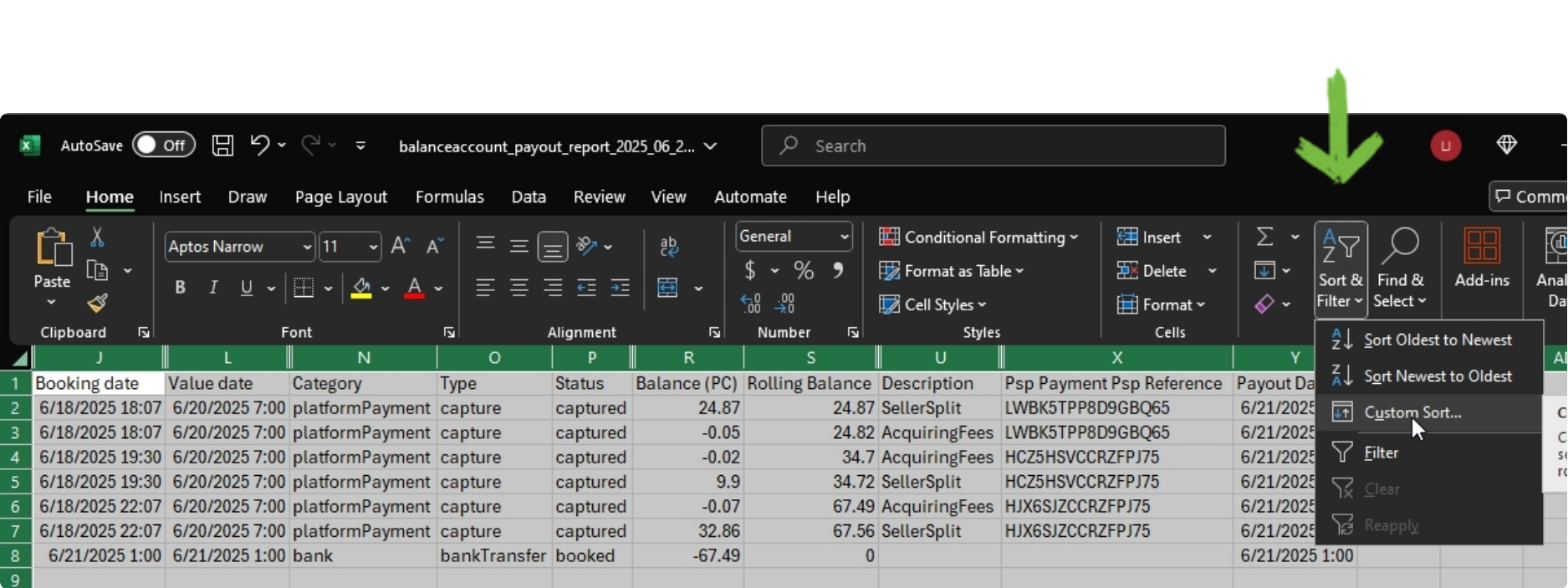
In the Custom Sort dialog box, you'll be able to set up your sorting criteria.
- Sort by: From the dropdown menu, choose the column header you want to sort by first. This is your primary sort. It's often best to start with a chronological column like a date field.
- Order: Specify whether you want the sort to be in ascending or descending order (e.g., Oldest to Newest).
- Add Level: Click the Add Level button to create additional sorting criteria. This is helpful for sorting data that has multiple rows with the same values in your primary sort column. For instance, you could sort by date and then by a person's name to organize events chronologically and then alphabetically by participant.
- Once you have set all your desired levels, click OK to apply the sort.